Pause & Resume Perk
Sometimes you need to temporarily stop a perk without deleting it. Pausing allows you to deactivate a perk and resume it later.
Why Pause a Perk?
- Budget adjustments — temporarily hold perks during budget reviews
- Seasonal benefits — pause summer perks during winter
- Policy changes — stop a perk while updating guidelines
- Testing — deactivate during system testing
When you pause a perk, it becomes inactive for the upcoming month. Employees will not receive this perk until you resume it.
How to Pause a Perk
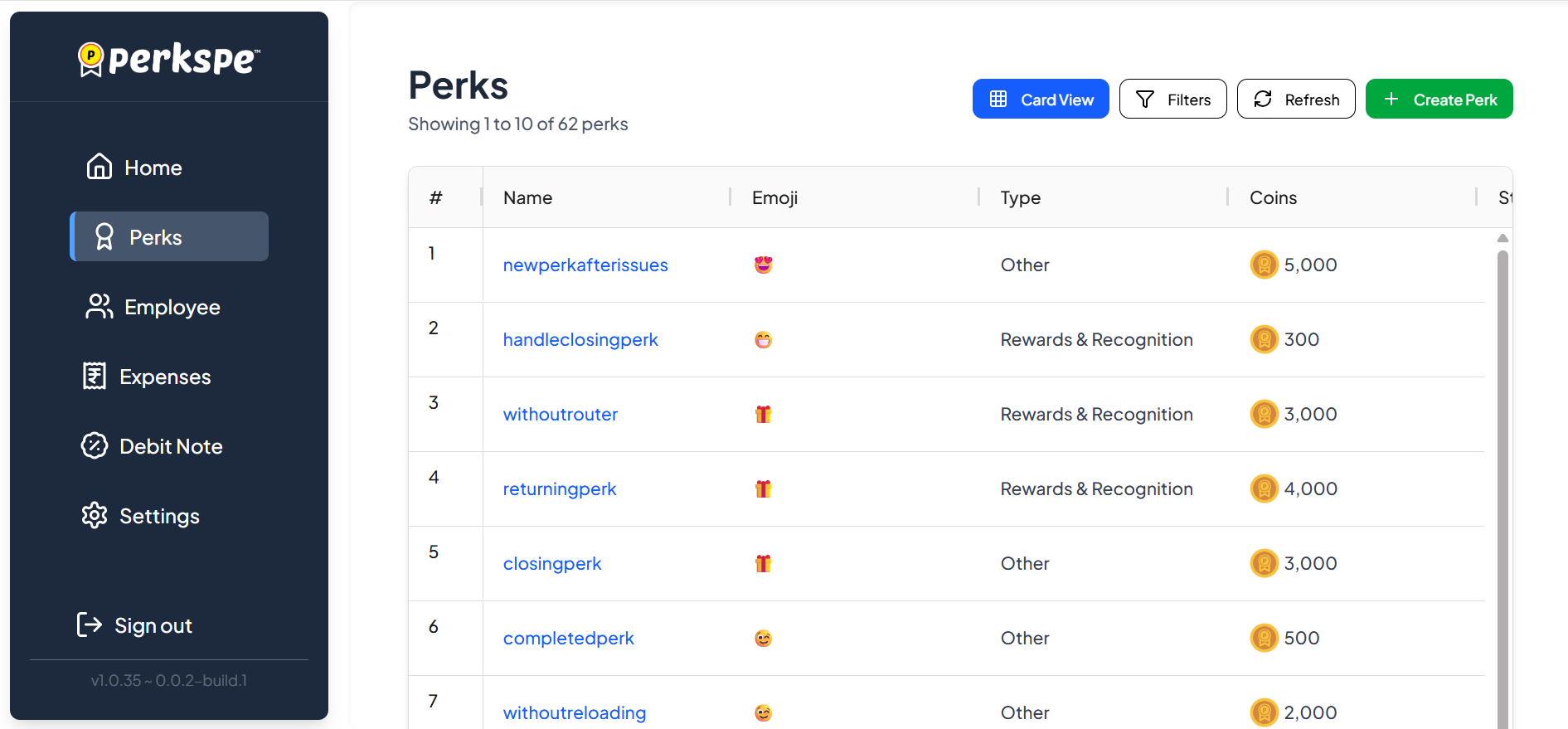
Step 1: Go to Perks
From the sidebar, click Perks.
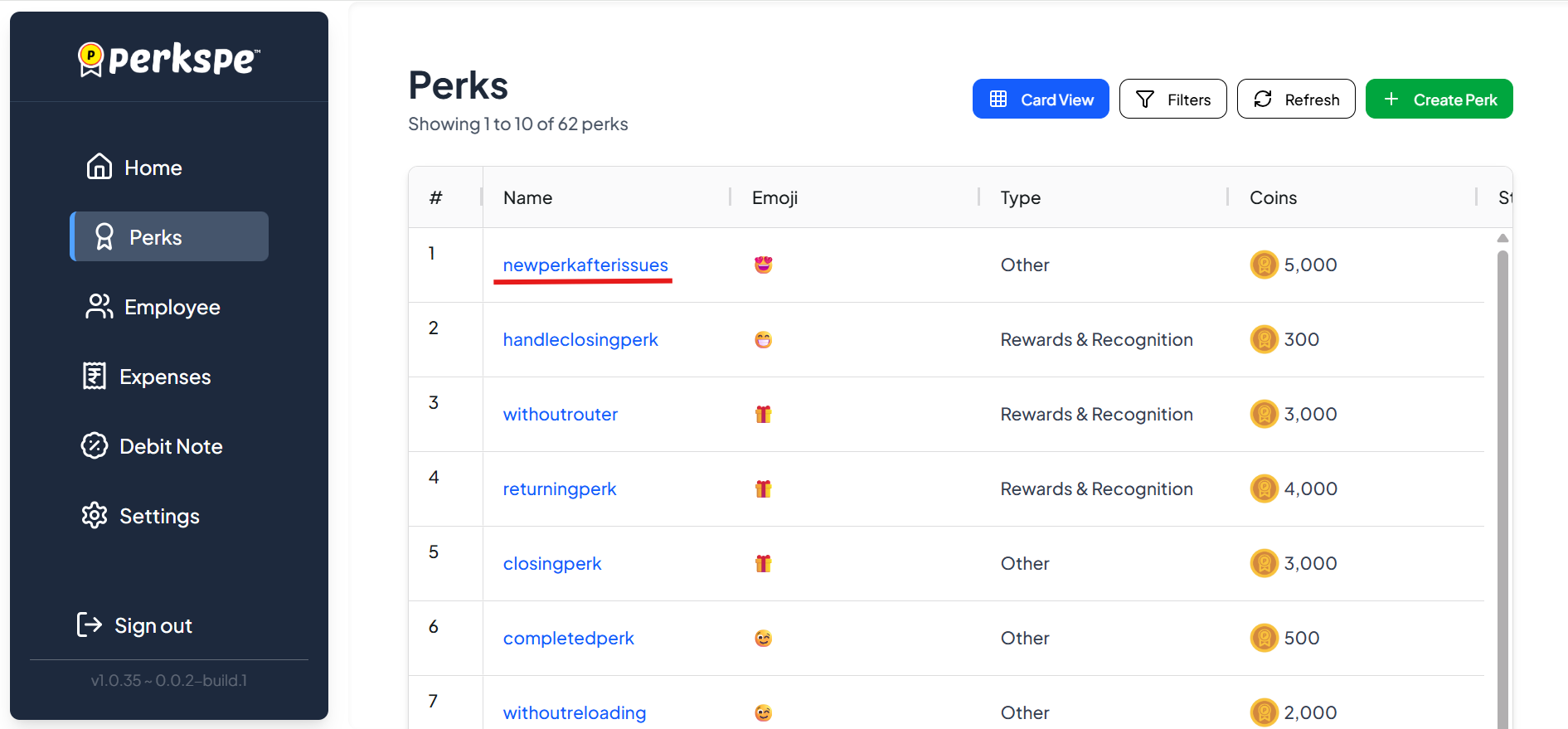
Step 2: Select the Perk
Click on the perk you want to pause.
Step 3: Go to Settings Tab
Click on the Settings tab.
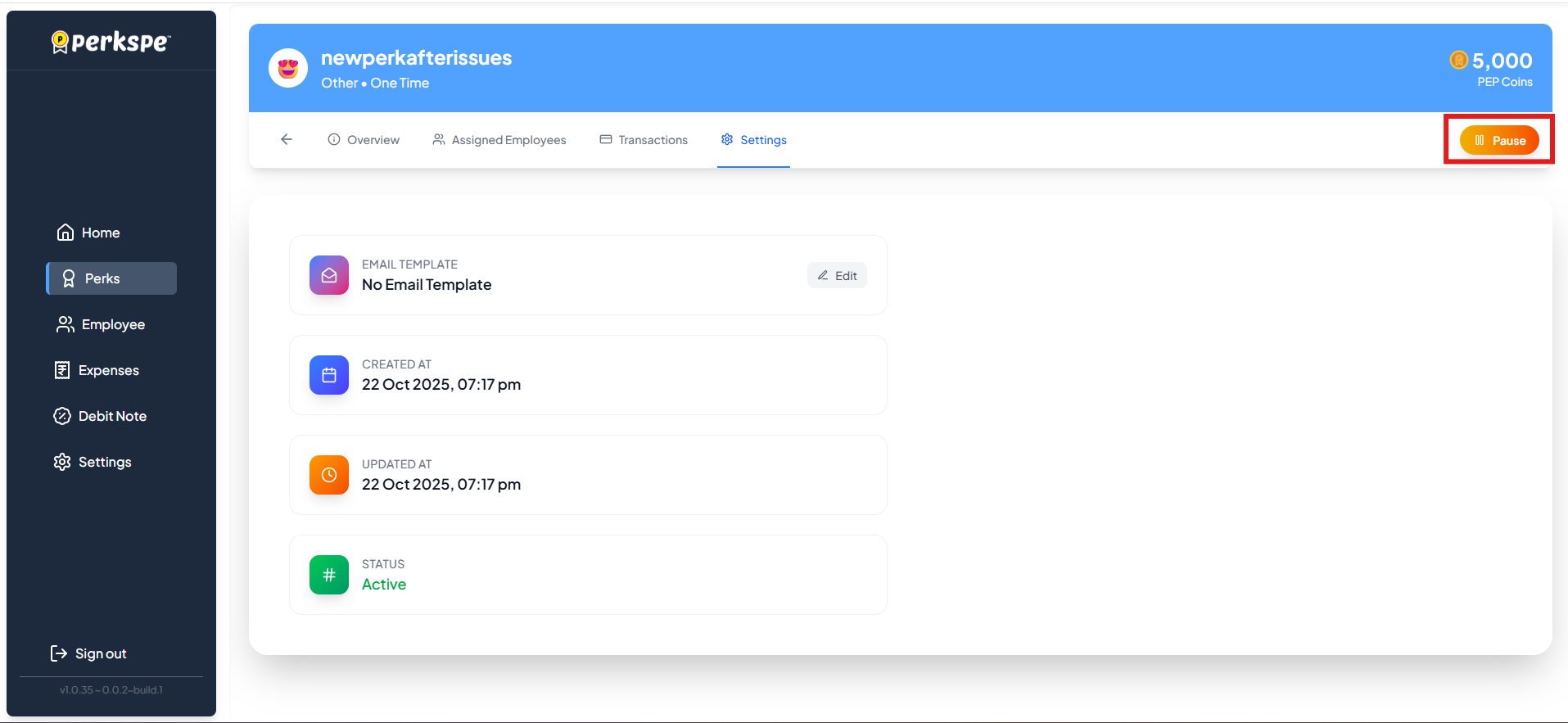
Step 4: Click Pause
Click the orange Pause button (top right).
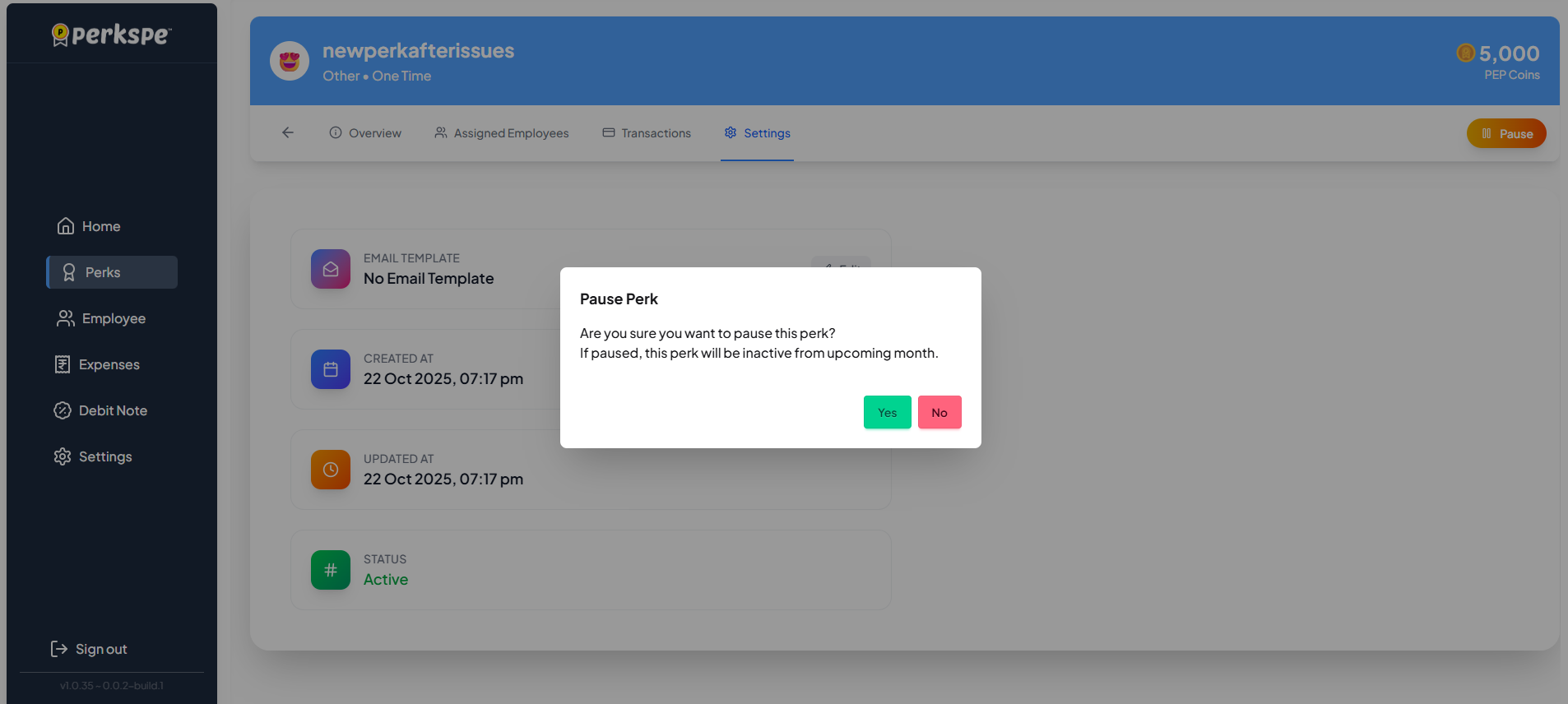
Step 5: Confirm
A confirmation popup appears:
"If paused, this perk will be inactive from the upcoming month."
Click Yes to confirm.
The button will change from orange "Pause" to purple "Resume".
How to Resume a Perk
Step 1: Go to the Paused Perk
Navigate to the paused perk and go to its Settings tab.
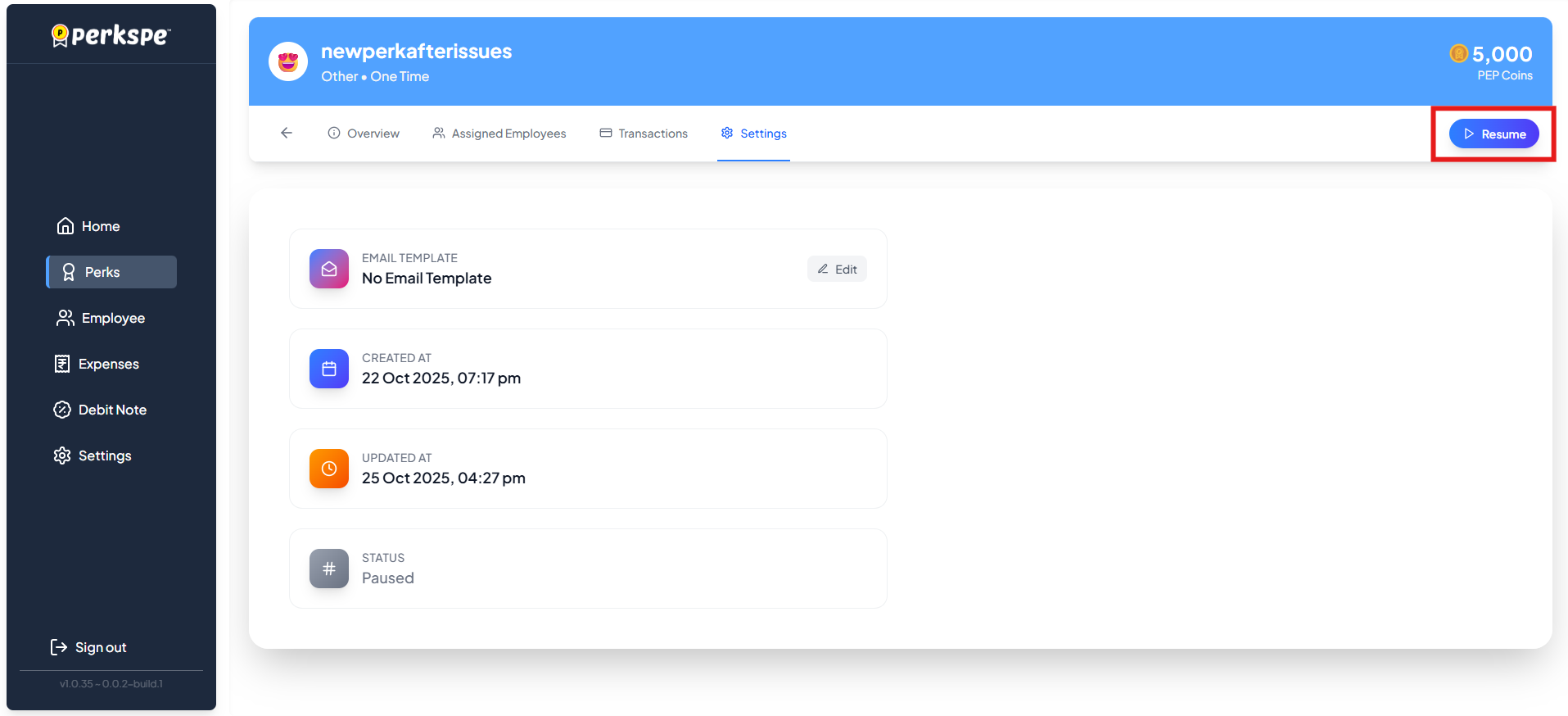
Step 2: Click Resume
Click the purple Resume button.
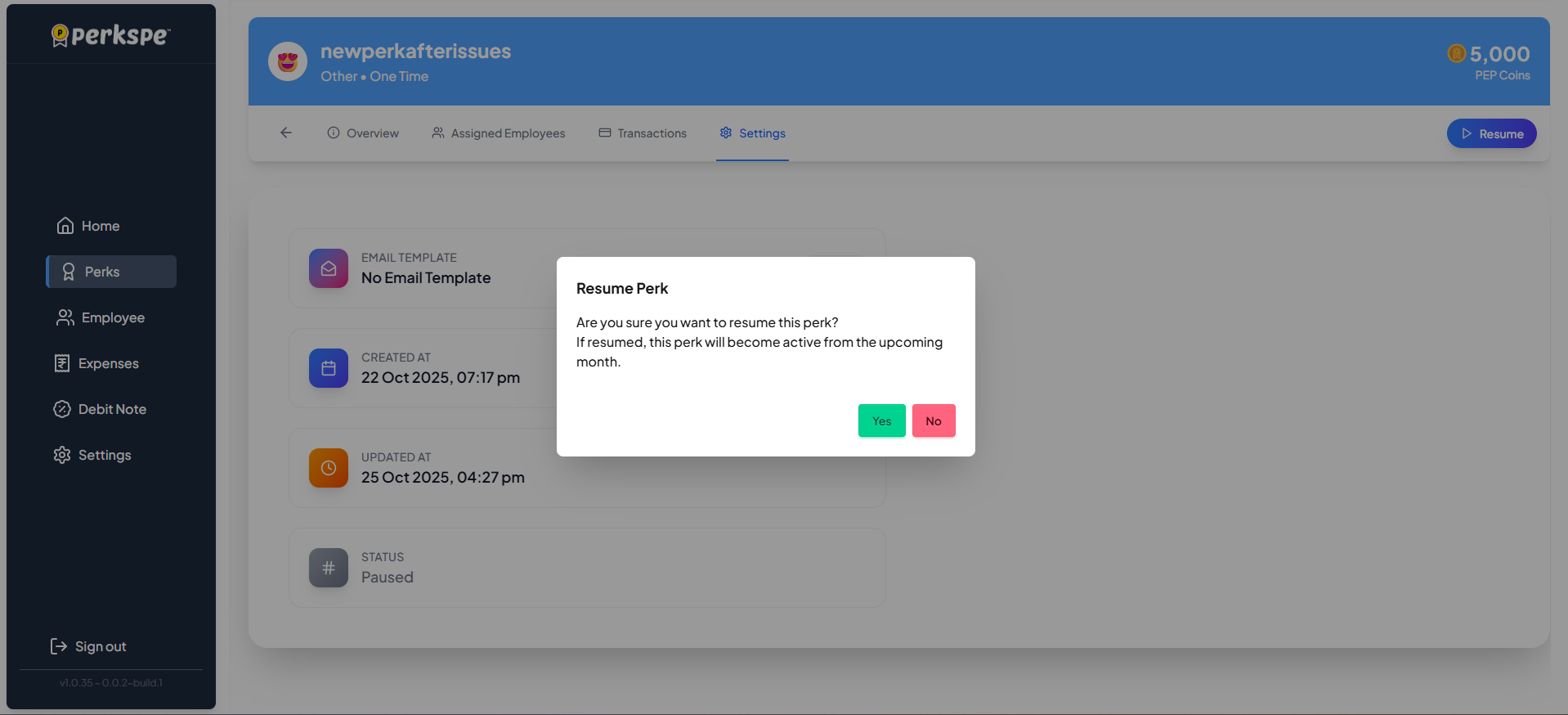
Step 3: Confirm
A confirmation popup appears:
"If resumed, this perk will become active from the upcoming month."
Click Yes to reactivate the perk.
Quick Reference
| Action | Button Color | Effect |
|---|---|---|
| Pause | Orange | Perk stops from next month |
| Resume | Purple | Perk restarts from next month |